
How to extract and normalise key terms from short verbatim responses using TruVerbatim’s Entity Extraction pipeline.
Overview
The Extraction Pipeline is designed for responses that mention specific things – brands, products, features, places, or other named entities. Instead of clustering responses by meaning, the pipeline reads each response and pulls out every entity mentioned, corrects spelling variations, and builds a clean frequency-ranked codeframe.
Each response is assigned:
- One or more extracted entities (e.g. “Nike”, “Adidas”)
- A raw mention preserving the original text before normalisation
Step-by-Step Guide
Step 1: Upload Your Data
- Open TruVerbatim and sign in
- Drag and drop your CSV or Excel file onto the upload area in the chat
- Select the column containing your verbatim responses
Optional: Enable auto-cleaning to remove personal information, profanity, duplicates, and blank rows.
Step 2: Review the Recommendation
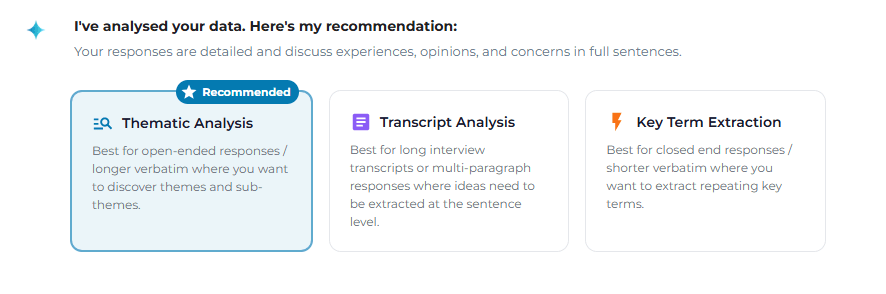
TruVerbatim analyses your data and presents a triage recommendation. If your responses are short or sparse, the system will recommend Key Term Extraction as the best approach.
You will see:
- A recommendation card with a confidence score
- A brief explanation of why extraction was recommended
- Key data metrics (median response length, short response rate, vocabulary diversity)
If the recommendation shows “Thematic Analysis” but you know your data contains entity mentions, you can override and select “Key Term Extraction” instead.
Step 3: Select Key Term Extraction
Click the Key Term Extraction pipeline card. The analysis begins immediately.
Step 4: Watch the Analysis Run
Real-time progress updates appear in the chat:
- Starting entity extraction pipeline – data is loaded and validated
- Understanding your data – the system samples your responses to understand the domain (e.g. brands, products, places)
- Extracting entities – the AI processes your responses in batches, with a progress percentage updating as it goes
- Building codeframe – extracted entities are counted and ranked by frequency
- Generating insight – the AI writes a brief summary of the findings
A progress bar shows the percentage complete throughout.
Step 5: View Your Results
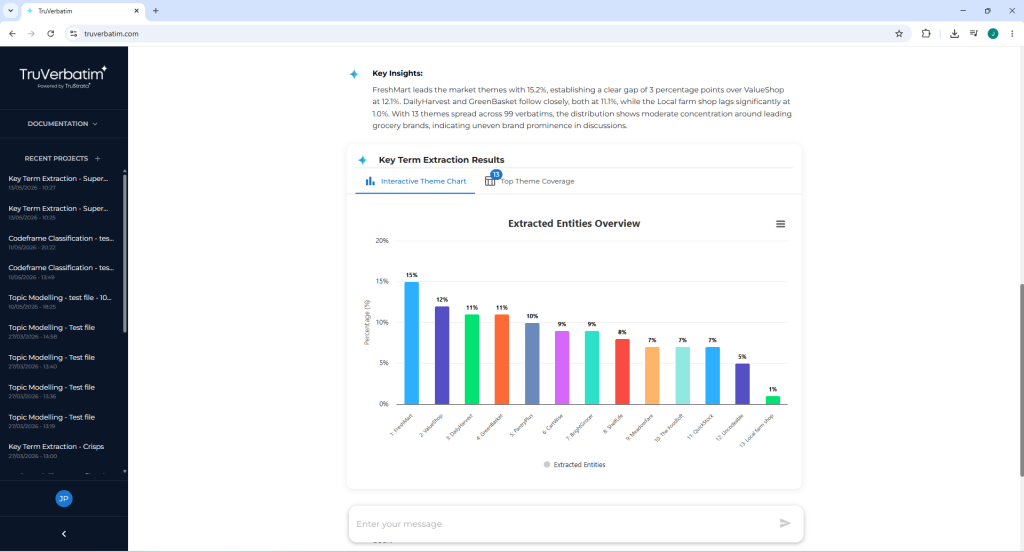
When the extraction completes, the chat displays:
- Entity frequency chart – a bar chart showing your extracted entities ranked by how often they were mentioned
- AI-generated insight – a narrative summary of the top entities and their distribution
- Download button – click to download the full classified CSV
Step 6: Download Your Results
Click the Download CSV button. The exported file includes:
| Column | Description |
| verbatim_id | Row identifier |
| verbatim_text | The original response |
| EXTRACTED_ENTITY | All normalised entities found (semicolon-separated) |
| RAW_MENTION | The original text before normalisation |
| THEME | Primary entity |
| Original columns | All metadata from your uploaded file |
How It Works
Domain Understanding
Before processing your full dataset, the pipeline samples a selection of your responses to understand the domain. This helps the AI recognise whether responses are about brands, products, cities, features, or something else entirely – so it extracts the right type of entity.
Entity Extraction
For each group of responses, the AI:
- Uses the domain context to understand what types of entities to expect
- Reads each response carefully
- Extracts every named entity mentioned
- Splits multi-entity responses (e.g. “Nike and Adidas” becomes two separate entities)
- Corrects typos and spelling variations while preserving meaning
- Assigns a confidence level (high, medium, or low)
Normalisation
The AI automatically normalises variations:
- “Nike”, “nike”, “NIKE”, “Nikee” all become “Nike”
- “Customer Service”, “customer service”, “cust. service” are unified
- The original mention is preserved in the RAW_MENTION column so you can always see what the respondent actually typed
Codeframe Building
Once extraction is complete, the system:
- Counts how many times each unique entity appears
- Ranks entities by frequency (most mentioned first)
- Calculates percentages of total responses
- Builds a codeframe compatible with the rest of TruVerbatim’s tools (Q&A, sentiment, PowerPoint)
After the Extraction
Ask Questions
Type questions in the chat to explore your results:
- “What are the top 10 entities?”
- “How many people mentioned Nike?”
- “Show me a crosstab of entities by age group”
- “Show me the verbatims that mentioned Adidas”
Handling Multi-Entity Responses
The extraction pipeline handles responses that mention multiple entities. For example:
| Response | Extracted entities |
| “Nike and Adidas” | Nike; Adidas |
| “I bought shoes from Nike/Reebok” | Nike; Reebok |
Each entity is counted separately in the frequency chart. The CSV shows all entities in the EXTRACTED_ENTITY column (semicolon-separated) and the primary entity in the THEME column.
Troubleshooting
| Issue | Likely cause | Solution |
| Entities not being split | Unusual separator in responses | The AI handles “/”, “&”, “and”, and commas – other separators may need pre-processing |
| Too many variations of the same entity | Unusual spellings or abbreviations | The AI normalises most variations, but you can merge in post-processing |
| “Uncodeable” responses | Blank, gibberish, or truly non-extractable text | These are expected – review them to check they are genuinely non-responses |
| Unexpected entities extracted | The AI misinterpreted the domain | This can happen with ambiguous data. Try re-running the analysis |
| Analysis seems slow | Large dataset (5,000+ responses) | Expected – the pipeline processes your data in stages. Progress updates show the current stage |
Tips for Best Results
- Short, specific responses work best – the pipeline is optimised for brand names, product mentions, and single concepts
- Include context in the question – if your survey question mentions “brands”, the AI will focus on brand extraction
- Review the “Uncodeable” items – they usually indicate blank or gibberish responses, but occasionally contain a valid entity the AI missed
- Use mention rank filtering – if your data has grouped columns (brand_1, brand_2, brand_3), the chart will offer rank-based filtering to see first-choice vs second-choice mentions
- Combine with Q&A – after extraction, use natural language questions to cross-tabulate entities against demographic variables